Organization Analytics
Roll cost, requests, and tokens up across every project in your organization, broken down by model, project, or API key
Organization Analytics rolls usage up across every project in your organization into one view. Where the project Analytics page answers "where does this project's spend go?", this page answers it for the whole org — and lets you pivot the breakdown by model, project, or API key.
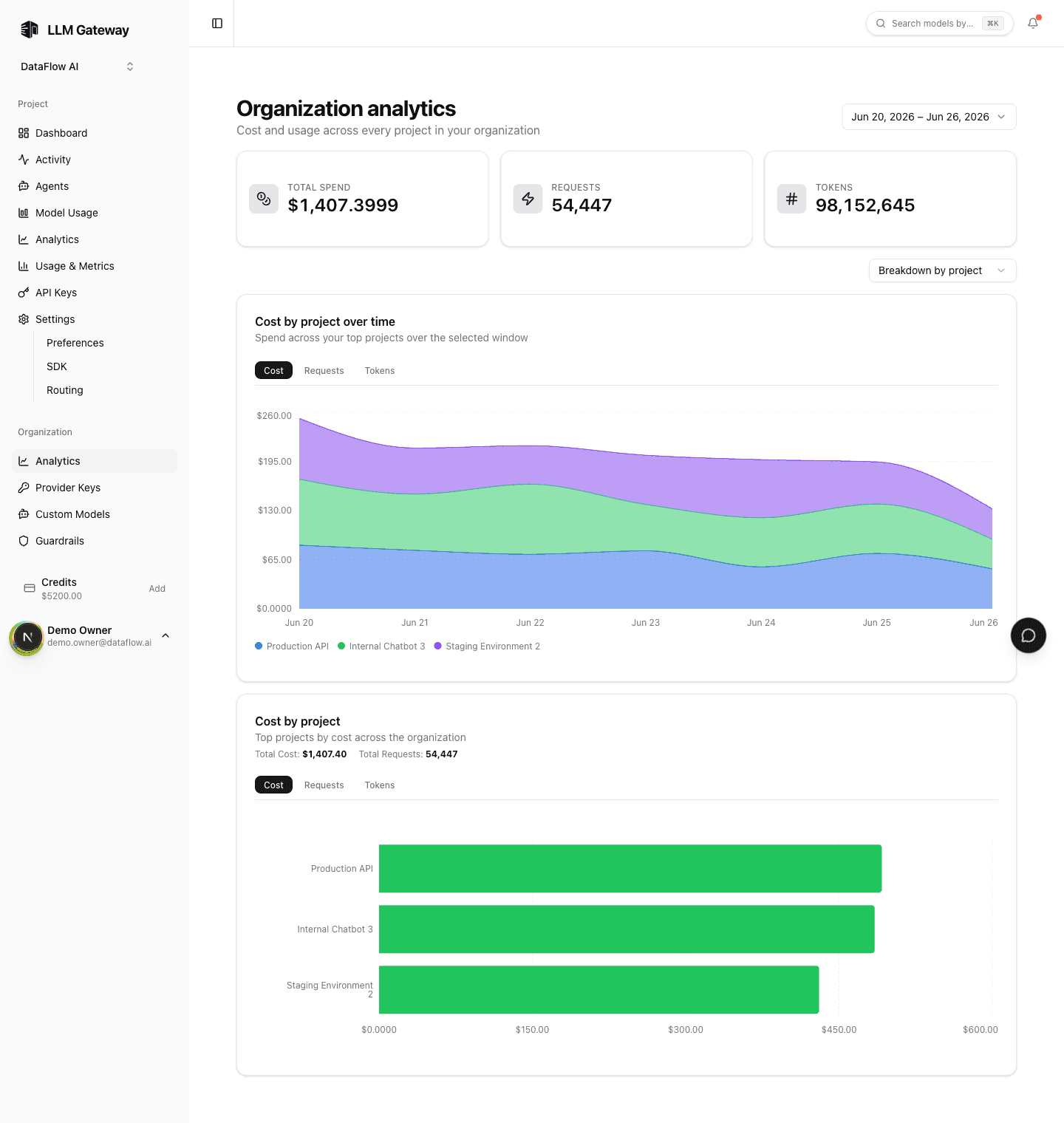
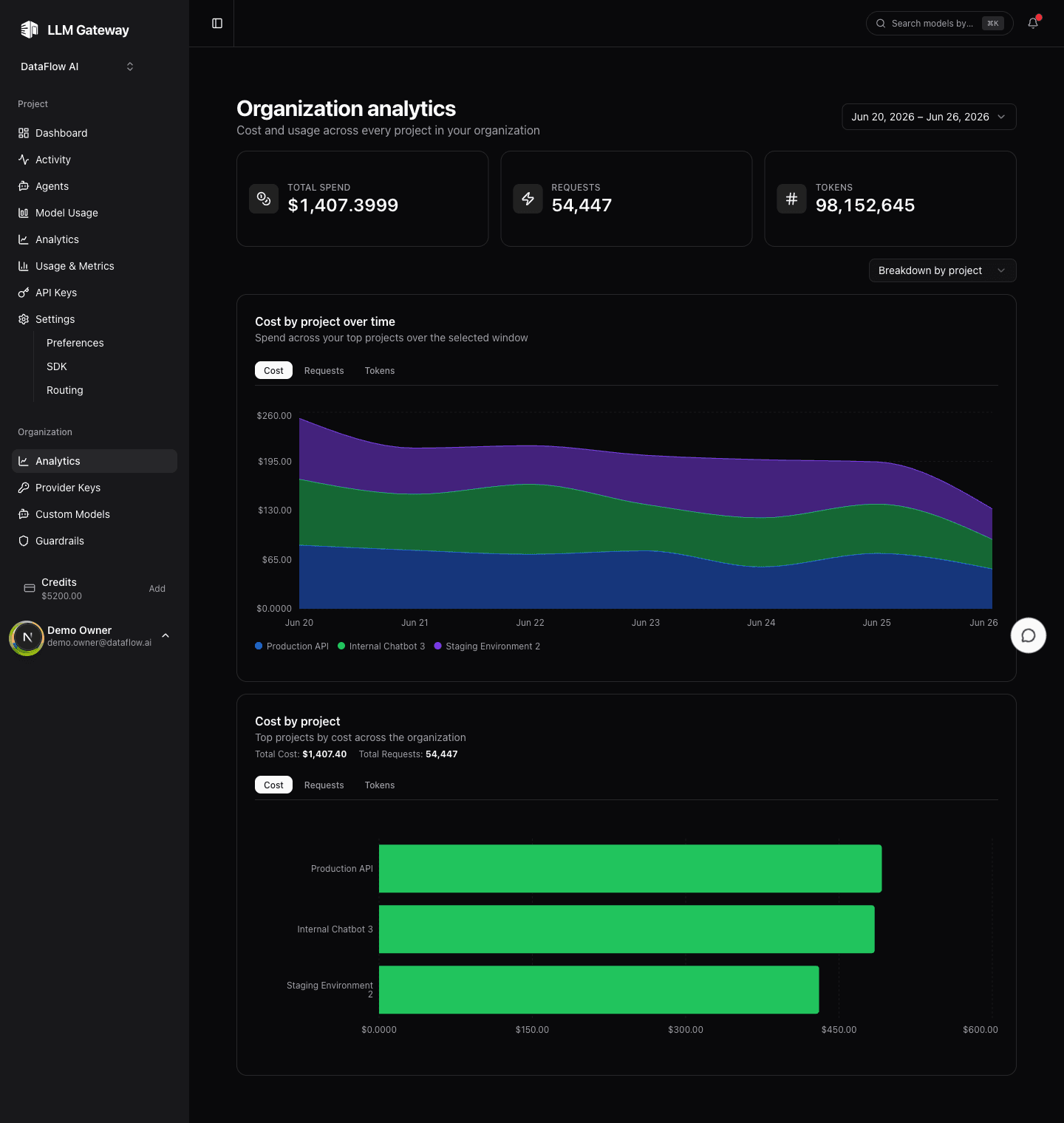
Organization Analytics is an Enterprise feature, available to organization owners and admins. On lower plans the page shows an upgrade prompt instead, and Enterprise-only items are flagged in the sidebar.
Open it from the Analytics item under Organization in the sidebar. Like the rest of the dashboard, it respects the shared date-range picker, so every chart and stat reflects the same window.
Summary
Three cards at the top total the selected range across the whole organization:
| Card | What it totals |
|---|---|
| Total spend | Combined cost of every project, in USD |
| Requests | Total requests routed across the org |
| Tokens | Total tokens (input + output) |
Breakdown
A single group-by control switches what the two charts below break the usage down by:
| Group by | What each series represents |
|---|---|
| Model | Canonical model, collapsed across providers (Qwen via any provider is one line) |
| Project | One project in the organization |
| API key | One API key (by its description) |
For each grouping you get the same two charts:
- Over time — a line or bar chart of the top series across the date range, with Cost / Requests / Tokens / Prompt cache rate tabs.
- Ranking — a horizontal bar chart of the top series for the range, with Cost / Requests / Tokens tabs and the running totals for the window.
Switch to Project to see which teams or workloads drive the bill, Model for the org-wide model footprint, or API key when usage runs through services rather than people.
Prompt cache rate
Select Prompt cache rate in the existing over-time chart to compare provider-cached input across models, projects, API keys, or users. The chart keeps the page's date range. Model and API-key filters apply only to this chart, across all its metrics.
The percentage is cached input tokens / total input tokens × 100. Total input already includes cached tokens. Rates are calculated from summed token counts, not averages of request or hourly percentages. This measures prompt caching, not gateway response-cache hits, and includes both credits and BYOK traffic.
Auto shows hourly cache rates for ranges up to 30 days and daily rates for longer ranges. Choose Daily to reduce short-term noise, or Hourly for a closer look within 30 days. Daily rates include all underlying hours, even hours whose individual rates are hidden.
Buckets with fewer than five requests show Insufficient traffic; buckets without input tokens show No input tokens. Both appear as gaps, not zero-percent cache hits. The cutoff is a display heuristic, not a confidence guarantee. Hover for request, input-token, and cached-token counts; faint bars show request volume on the right axis. The current bucket is marked incomplete in its tooltip.
The cache view compares the top ten series by input-token volume across the selected range. Filter a model to compare its API keys, or filter an API key to compare its models. Deleted keys retain their historical usage. Traffic outside the per-key rollups appears as Unattributed.
How the data is computed
Both charts read from the same pre-aggregated hourly rollups the rest of the dashboard uses — there is no separate analytics pipeline and no scan over raw request logs, so the page stays fast over any range. Aggregation happens per time bucket, so totals line up with the project Analytics and Usage & Metrics pages for the same window.
For a single project's breakdown, see Analytics. For a per-person view of org spend, see Member Analytics.
How is this guide?