API Keys
Create, limit, and control API keys for authenticating with LLM Gateway
The API Keys page is the main place to create, secure, and operate the keys your apps use to authenticate with LLM Gateway.
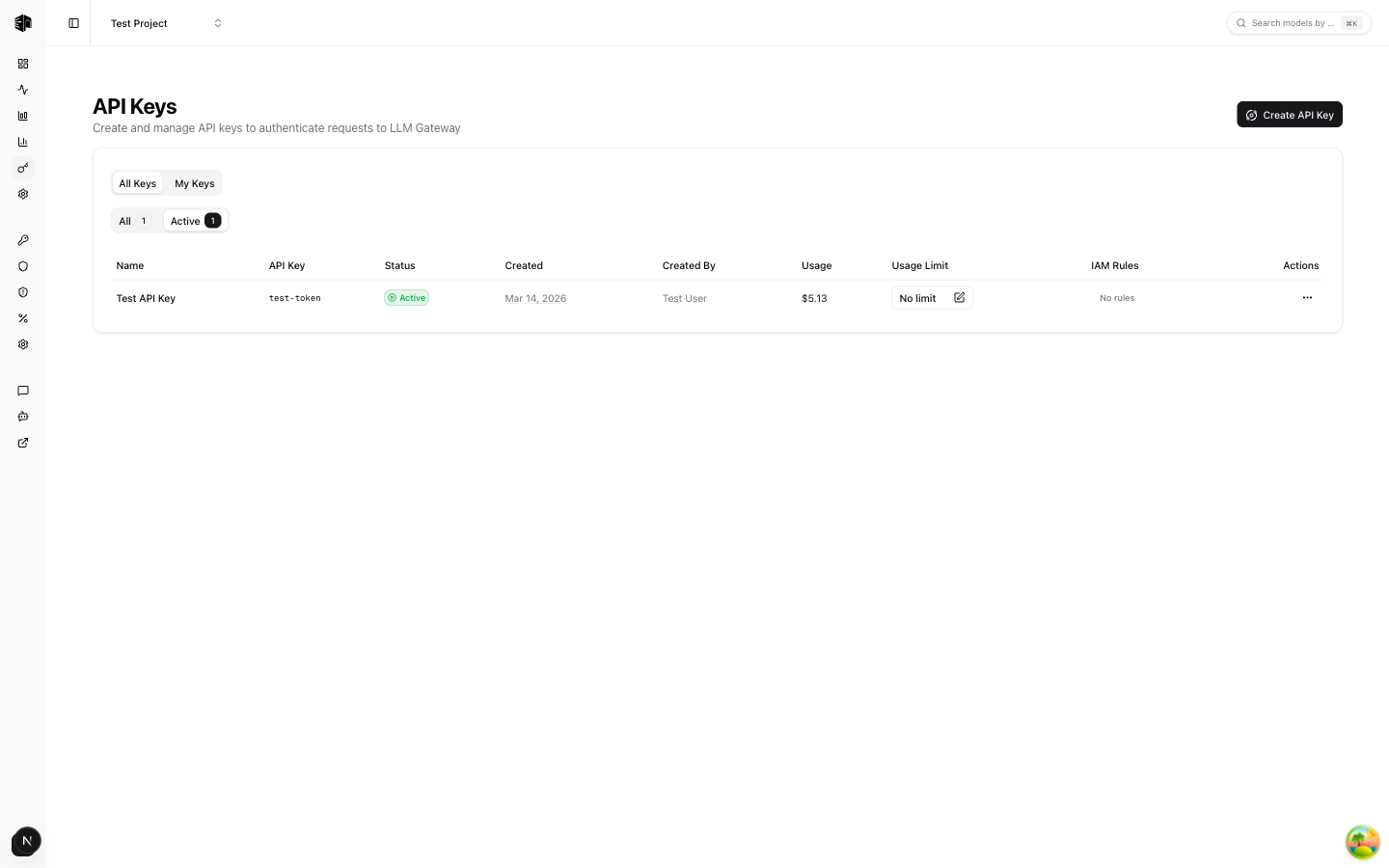
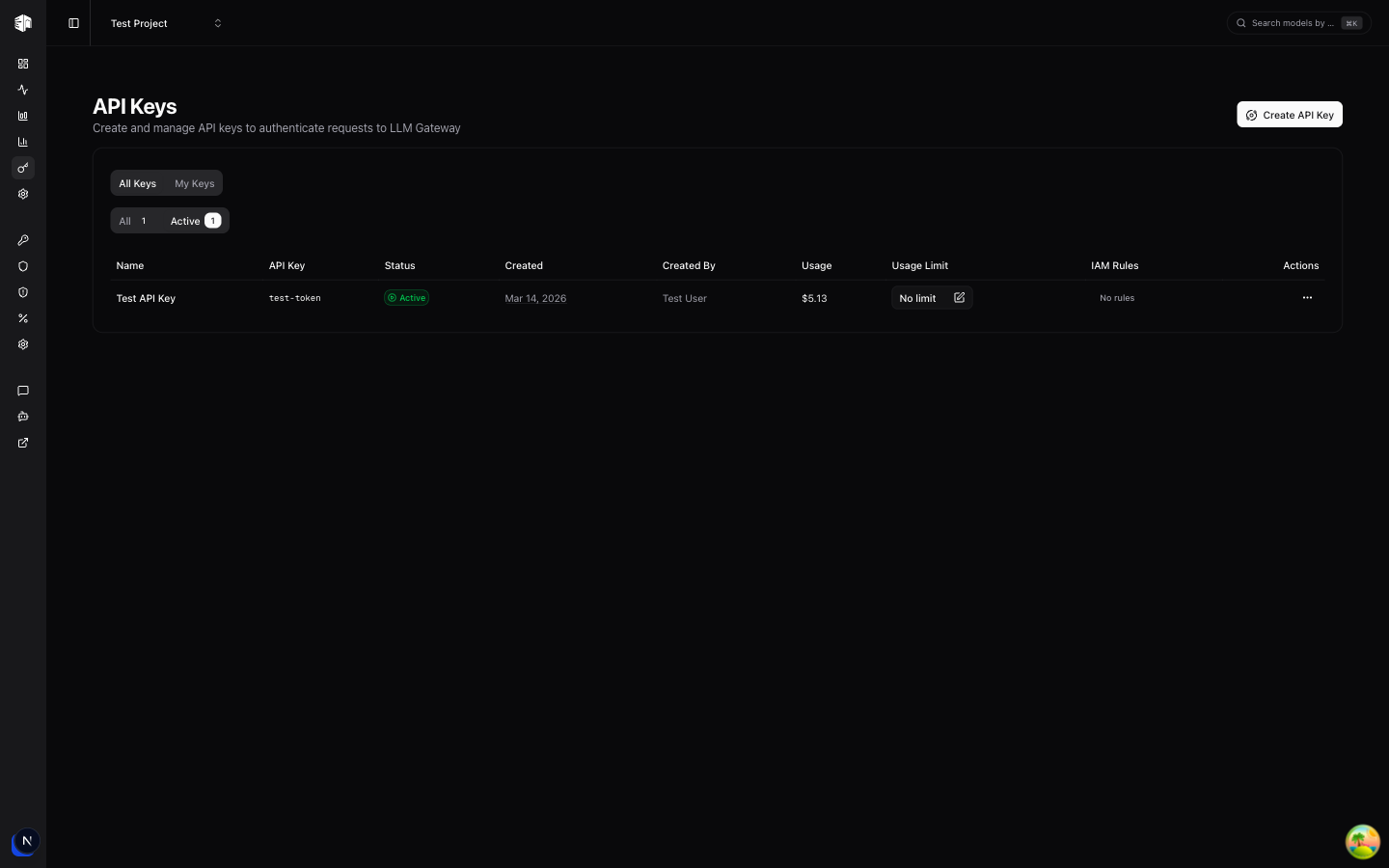
Use this page to:
- Create project-specific API keys
- Set all-time and recurring spend limits per key
- Set an expiration (TTL) so a key disables itself automatically
- Track usage for each key, including the active recurring window
- Enable or disable keys without deleting them
- Configure IAM rules for model, provider, and pricing access
API keys are shown in full only once, immediately after creation. Copy and store them securely before closing the dialog.
Creating an API Key
Click Create API Key and configure:
- Name: A label such as
production,staging, orci - Expiration (TTL): An optional time-to-live after which the key disables itself
- All-time usage limit: An optional lifetime spend cap for the key
- Recurring usage limit: An optional spend cap that resets on a schedule
Recurring limits support:
- Minimum window: 1 hour
- Maximum window: 12 months
- Units: hour, day, week, or month
This is useful when you want a key to stay below a fixed budget per hour, day, week, or month, while still keeping a separate lifetime cap if needed.
Expiration (TTL)
Turn on Set expiration (TTL) when creating a key to give it a limited lifetime. Choose a value and a unit — minutes, hours, or days — and the key is disabled automatically once that time passes. Leave it off for a key that never expires.
Expired keys show an Expired indicator in the list and move to the Inactive tab. To use one again, reactivate it and pick a new future expiration:
- Activate an expired key and you'll be prompted to set a fresh TTL before it comes back online
- Keys with no TTL, or whose TTL is still in the future, can be enabled and disabled without setting a new expiration
This makes TTL keys ideal for temporary access — short-lived demos, CI runs, or contractor keys that should not linger.
Usage Limits
Each API key can enforce two independent limit types:
| Limit Type | What it does |
|---|---|
| All-time usage limit | Stops the key after it reaches a lifetime spend threshold |
| Recurring usage limit | Stops the key after it reaches the budget for the active window |
Examples:
$50all-time for a temporary integration key$10 / 1 dayfor a development key$500 / 1 monthfor a production service key
If a key hits either limit, requests using that key are rejected until the key is updated or, for recurring limits, the next window begins.
How recurring windows work
Recurring usage is tracked separately from total lifetime usage.
- The dashboard shows the key's Current Period usage
- The active window also shows when it resets
- When the configured window expires, usage for that window resets automatically
- Updating the recurring limit configuration resets the current window and starts a new one
Usage includes both LLM Gateway credits and requests routed through your own provider keys when applicable.
API Keys List
Each key in the list shows:
| Field | Description |
|---|---|
| Name | The label you assigned to the key |
| API Key | A masked preview of the key |
| Status | Whether the key is active or inactive, plus its expiry if set |
| Created | When the key was created |
| Usage | Total tracked usage for the key |
| Current Period | Spend in the active recurring window, if configured |
| Limits | All-time and recurring limit summary |
| IAM Rules | Whether model/provider/pricing access controls are configured |
Actions
For each API key you can:
- Update limits: Change all-time or recurring limits
- Disable or enable: Pause usage without deleting the key (reactivating an expired key prompts for a new expiration)
- Configure IAM rules: Restrict which models, providers, or pricing tiers the key can use
- Open usage details: Inspect requests and usage tied to that key
- Delete: Permanently remove the key
IAM Rules
IAM rules let you narrow what an API key is allowed to access.
Supported rule types include:
- Allow/Deny models
- Allow/Deny providers
- Allow/Deny pricing
Use IAM rules when you want a key to be valid, but only for a specific subset of models or providers. For a deeper explanation, see the API Keys & IAM Rules feature page.
Plan Limits
The page also shows how many API keys your current project is using relative to your plan allowance.
- Free: Standard API key count limit
- Enterprise: Custom limits
If you reach the project key limit, the Create API Key button is disabled until you delete unused keys or upgrade.
How is this guide?
Last updated on